
Email Deliverability
Email providers are tightening anti-phishing and anti-fraud filtering across Gmail, Microsoft/Outlook, Yahoo, and other email providers. Outfitter 4’s legitimate work often includes invoices, payments, banking details, financial documents, attachments, and links, and these normal business patterns can resemble messages that filters are designed to stop. As a result, Outfitters4 has been seeing more emails land in spam and junk folders. You may need to mark O4 as a safe sender or otherwise tell your mail system to trust us. Here are some instructions on how to tell your mail system to accept O4 emails.
FOR GOOGLE
Steps to Create the Rule
Open Gmail on your computer.
Click the sliders icon (Show search options) on the right side of the search bar at the top.

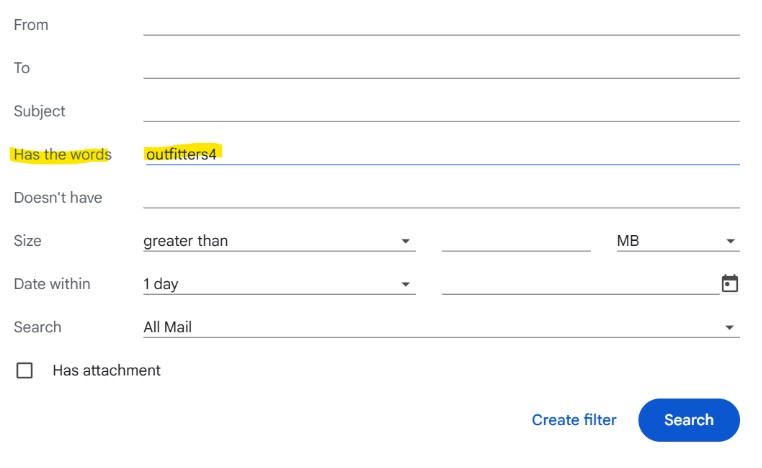
3. Enter the criteria for the emails you want to rescue. Such as, the sender's email address in the From field
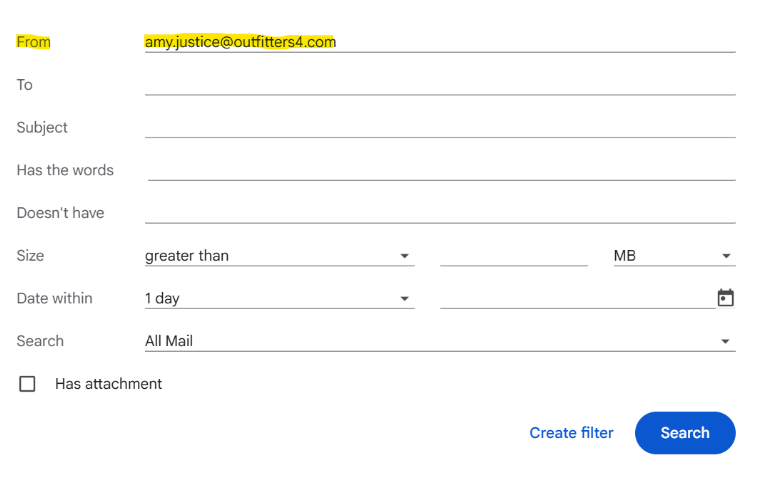
or specific keywords in Has the words
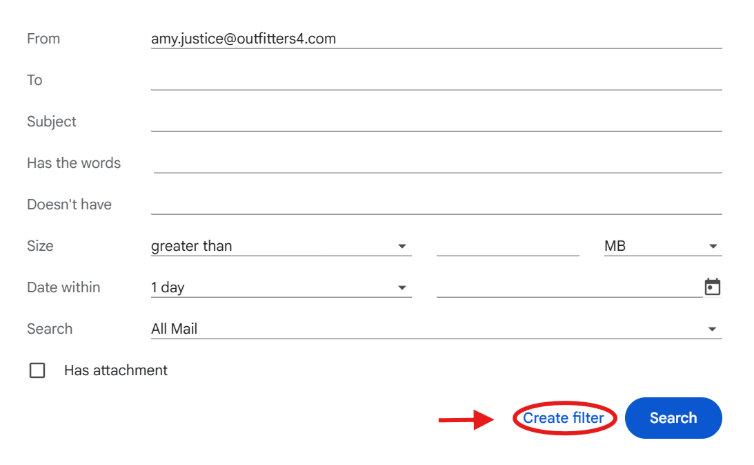
4. Click Create filter at the bottom of the search window.
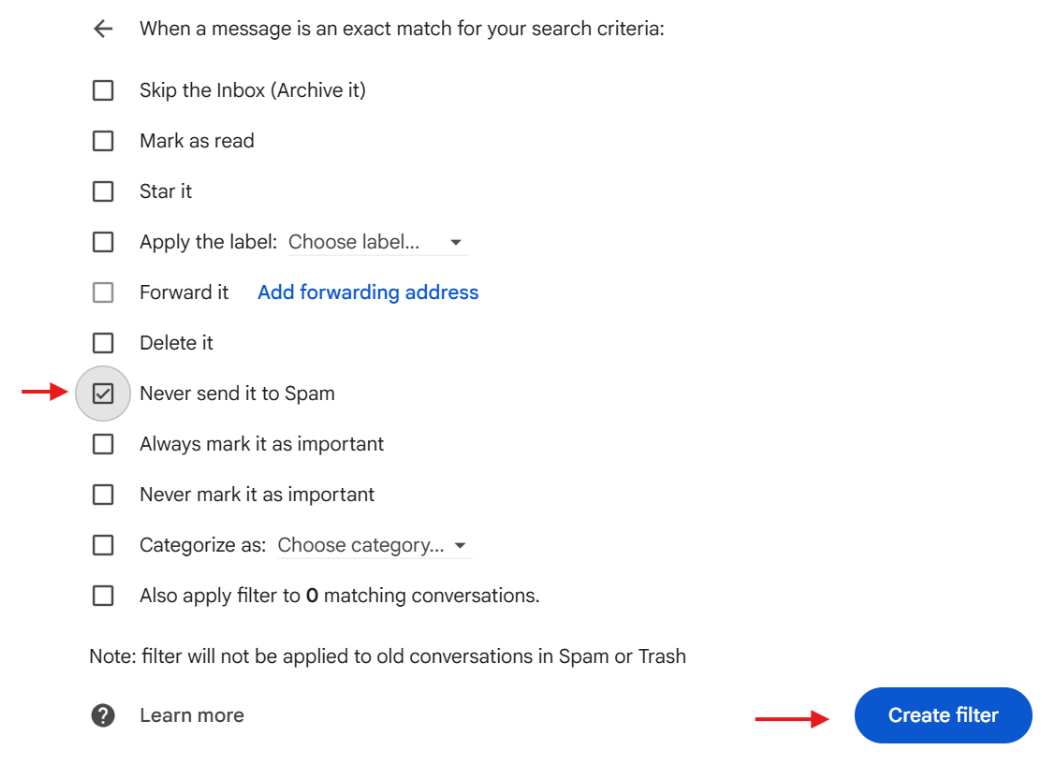
5. In the list of action checkboxes, check the box for Never send it to Spam.
6. (Optional) Check Also apply filter to matching conversations if you want it to catch current emails.
7. Click Create filter
FOR OUTLOOK
** No available way to create a rule to automatically pull an email out of the junk folder because of the way outlook works.
Move Email from Junk in Outlook for Windows
Open Outlook and navigate to the Junk Email folder in your folder list on the left side.
Locate the email you want to recover and right-click on it.
Select 'Junk' from the context menu, then choose 'Not Junk' from the submenu.
Outlook will move the message to your Inbox and add the sender to your Safe Senders list.
Alternatively, you can simply drag and drop the email from the Junk folder directly into your Inbox folder.
Move Email from Junk in Outlook on the Web (OWA)
Sign in to Outlook on the web at https://outlook.office.com.
Click on the 'Junk Email' folder in the left navigation pane.
Select the email you want to move by clicking on it.
In the toolbar at the top, click 'Not junk' (or right-click the message and select 'Mark as not junk').
The message will be moved to your Inbox and the sender will be added to your Safe Senders list.
You can also drag the email from Junk Email and drop it into your Inbox folder.
Move Email from Junk in New Outlook for Windows
Open the new Outlook app and click on the 'Junk Email' folder.
Select the email you want to recover.
Click the 'Not junk' button in the toolbar, or right-click and select 'Report' → 'Not junk'.
The message moves to your Inbox and Outlook learns to trust this sender in the future.
For multiple emails, hold Ctrl and click each message to select them, then use 'Not junk' to move them all at once.
Move Email from Junk in Outlook for Mac
Open Outlook for Mac and select the 'Junk Email' folder from your folder list.
Find and select the email you want to move.
Right-click the message and choose 'Mark as Not Junk', or go to Message → Junk → Mark as Not Junk in the menu bar.
The email will be moved to your Inbox.
You can also drag the message from Junk Email directly to your Inbox folder.
Prevent Future False Positives
Add trusted senders to your Safe Senders list: In Outlook settings, go to Mail → Junk email → Safe senders and domains, then add the email address or domain.
If you are an administrator, consider creating a mail flow rule in Exchange Admin Center to bypass spam filtering for specific trusted senders or domains.
Ask the sender to verify their email authentication (SPF, DKIM, DMARC) is properly configured, as missing authentication is a common cause of junk folder placement.
If emails from a particular sender consistently go to Junk, contact NTS support and we can investigate the sender's reputation and authentication status.